← Back to articles · Coin Dealer information ·
Point your domain — CoinWebHosting DNS & AutoSSL
Connect yourshop.com to CoinWebHosting with nameservers or an A record. The customer portal walks you through copy-paste values; AutoSSL issues when DNS propagates.
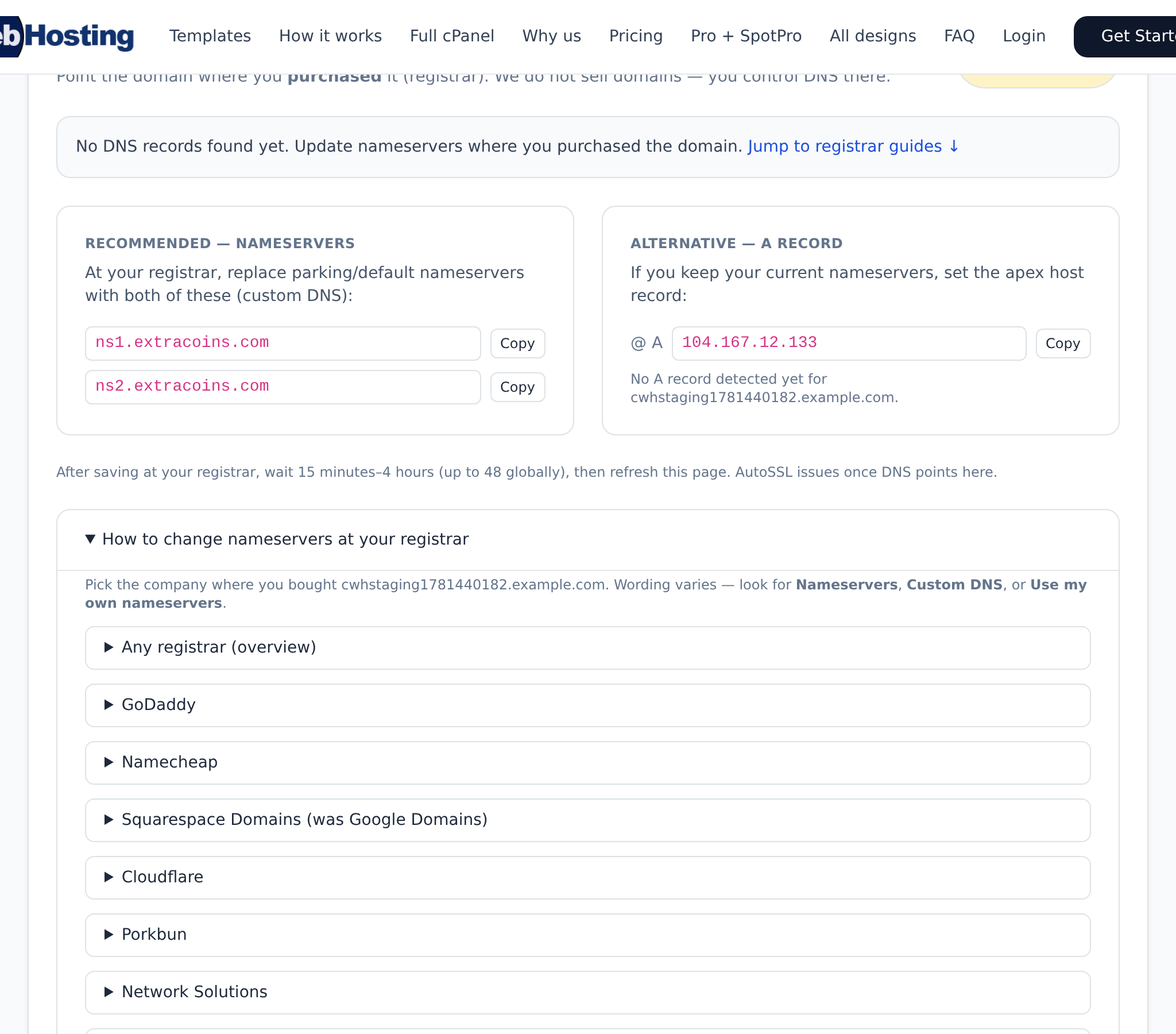
Updated August 2026. Domains and SSL are part of getting found. Point your domain — CoinWebHosting DNS & AutoSSL covers ExtraCoins hostnames and optional CoinWebHosting for full sites — both matter for Merchant Center verification.
Hosting and domains
- ExtraCoins subdomain is included for the storefront
- CoinWebHosting is a separate product for full cPanel sites / custom domains when you need more than the shop
- AutoSSL and DNS pointing keep Merchant Center domain verification painless
- Dealer Site (
yourname.dealer.spotpro.us) for marketing pages that can embed boards
How ExtraCoins (included with SpotPro) supports this
- Branded shop on your ExtraCoins hostname — categories, search, product pages, spot charts
- Live bullion pricing in cart from Kitco spot (with backup) plus your POS premiums — not a static brochure
- Store Listings — online vs in-store-only flags so high-value coins can show without open cart risk
- $0 listing / selling fees from SpotPro — card processors and postage are separate dealer accounts
- Pickup queue + Ship Desk / Shippo — web orders without breaking the counter line
One product feed for Google and Bing (Microsoft)
SpotPro already publishes your ExtraCoins catalog as a live shopping feed. You do not rebuild a spreadsheet every Monday. The same feed URL works for Google Merchant Center and Microsoft Merchant Center (Bing Shopping / product ads).
- Where to copy it: Company Profile → ExtraCoins store → Google Shopping feed — or Online Listings → Get found online
- Current path:
https://yourstore…/shopping-feed(legacy/shopping-XML-feed.phpstill exists) - Local floor stock:
/shopping-local-inventory-feedwith Google Business Profile for free local listings - Vacation mode: pauses advertising inventory when you are closed so ads do not sell stock you will not ship
- Hygiene: Visible + Buy online + in stock + photo + clear title — those rows are what the feed exports
Connect Google Merchant Center with a scheduled fetch on that URL. In Microsoft Merchant Center, create a catalog and point the same scheduled fetch at the same URL. Campaign bids live in Google Ads / Microsoft Advertising — the catalog work is shared because SpotPro owns the feed.
What not to publish
- Do not ship keyword-only stubs with no workflow — they look thin and waste crawl budget
- Do not invent dealer counts, fake “highest prices,” or fees SpotPro does not charge
- Do not advertise items missing photos or paused in vacation mode
- Do not treat backlinks as a substitute for Merchant Center, GBP, and real inventory photos
Next steps
- Start a SpotPro trial (introductory pricing lock-in for life while continuously subscribed — cancel anytime; see spotpro.us for current offer)
- Turn on ExtraCoins Online Listings and copy the shopping feed for Google + Microsoft Merchant Center
- Align Company Profile NAP with Google Business Profile
- Read the related guides below — skip thin keyword pages that do not teach a real workflow
Related guides
- What is SpotPro?
- ExtraCoins storefront guide
- Google Shopping feed setup
- Bing ads + shopping feed for coin shops
- Merchant Center checklist
- Setup checklist for new dealers
- Articles index
Learn more at spotpro.us and extracoins.com. Product details always win over generic “marketing tips” pages — that is why this article shows the actual SpotPro paths.