
← Back to articles · Coin Dealer information ·
Bing Ads for local coin shops — plus Microsoft Shopping feeds
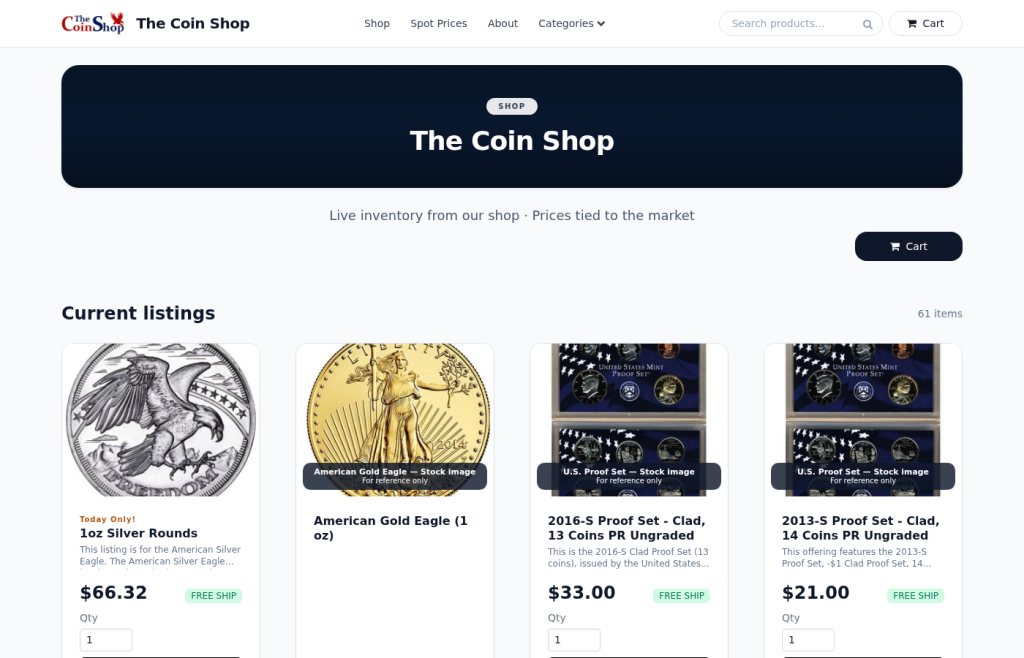
Updated August 2026. Bing (Microsoft Advertising) still matters for coin shops: many buyers 45+ default to Bing or Yahoo, and CPC is often cheaper than Google for “coin shop near me,” ASE, and scrap gold queries. Thin keyword pages do not get you indexed or convert. This guide shows how to run local Bing ads and how SpotPro / ExtraCoins give you landing pages and a product feed that Microsoft can use.
What to advertise (and what to land on)
Do not send paid traffic to a Facebook page or a PDF hours flyer. Send it to live pages that match the ad:
- Local intent (“coin shop Brighton MI”, “sell gold near me”) → ExtraCoins home, About/hours, or a dedicated buy-bullion page with Display Screen / Live Buy Sheet prices that match the counter.
- Product intent (“American Silver Eagle buy”, “1 oz gold buffalo”) → product detail URLs from Online Listings, fed by the same catalog that powers Google and Microsoft shopping feeds.
- Show weekend traffic → link people to real events on CoinShows.us and your shop hours for the same weekend.
How SpotPro helps before you spend a dollar
- ExtraCoins storefront — branded shop with live bullion cart pricing, not a static brochure site.
- Shopping feed (
/shopping-feed) — one XML catalog for Google Merchant Center and Microsoft Merchant Center product ads. Copy from Company Profile → ExtraCoins store → Google Shopping feed. - Local inventory feed — floor stock for free local listings when paired with Google Business Profile (and similar local assets on Microsoft where available).
- Vacation mode — stops advertising inventory when you are closed.
- Live Buy Sheet / Display Screen — honest buy prices on TV and web embeds so ad claims match the window board.
- SMS — optional stock/spot alerts after the click converts to a subscriber (not a substitute for the landing page).
- Pickup queue + Shippo — fulfill web orders without breaking the in-store line.
Connect the product feed to Microsoft (Bing Shopping)
- In SpotPro, open Company Profile → ExtraCoins store → Google Shopping feed and copy the live feed URL (
/shopping-feed). - In Microsoft Merchant Center, create a catalog and add a scheduled fetch using that same URL.
- Verify domain ownership for your ExtraCoins hostname.
- Link Microsoft Advertising and enable Product ads / Shopping-style campaigns.
- Keep Online Listings Visible, Buy online, in stock, with photo + clear title — those rows are what the feed exports.
You maintain inventory once in SpotPro. Google and Bing both read the live feed. See the full setup path: Google Shopping feed for your dealer storefront (same feed, both networks).
Local search ads that do not waste budget
- Use location targeting around the shop (miles, not entire states) unless you ship nationally.
- Extensions: call, location, sitelinks to Buy / Sell / Hours.
- Negative keywords: “melt calculator,” “eBay,” “free,” “pdf” when those are not your offer.
- Match ad copy to real buy spreads from Live Buy Sheet — do not invent “highest prices” claims.
- Track calls and form leads; SpotPro customer records and web pickup queue show what closed.
Bing vs Google for coin shops
Run both if budget allows. Google wins volume; Bing often wins efficiency with older buyers and less competition on niche bullion terms. The catalog work is shared because SpotPro already emits the feed. The campaign work is separate accounts and bids.
What not to do
- Do not publish thin “keyword only” articles and expect ads or organic to save them — Google and Bing both suppress low-value pages.
- Do not buy bulk backlinks as a substitute for Merchant Center, Business Profile, and real inventory photos.
- Do not advertise items that are vacation-paused or missing photos — feed hygiene prevents that when you use SpotPro correctly.
Next steps
- Start a SpotPro trial and turn on ExtraCoins Online Listings
- Copy the shopping feed URL and connect Google + Microsoft Merchant Center
- Claim Google Business Profile with Company Profile NAP match
- Read Shopping feed setup and GBP basics