
← Back to articles · Coin Dealer information ·
Google Shopping feed for your dealer storefront (SpotPro + ExtraCoins)
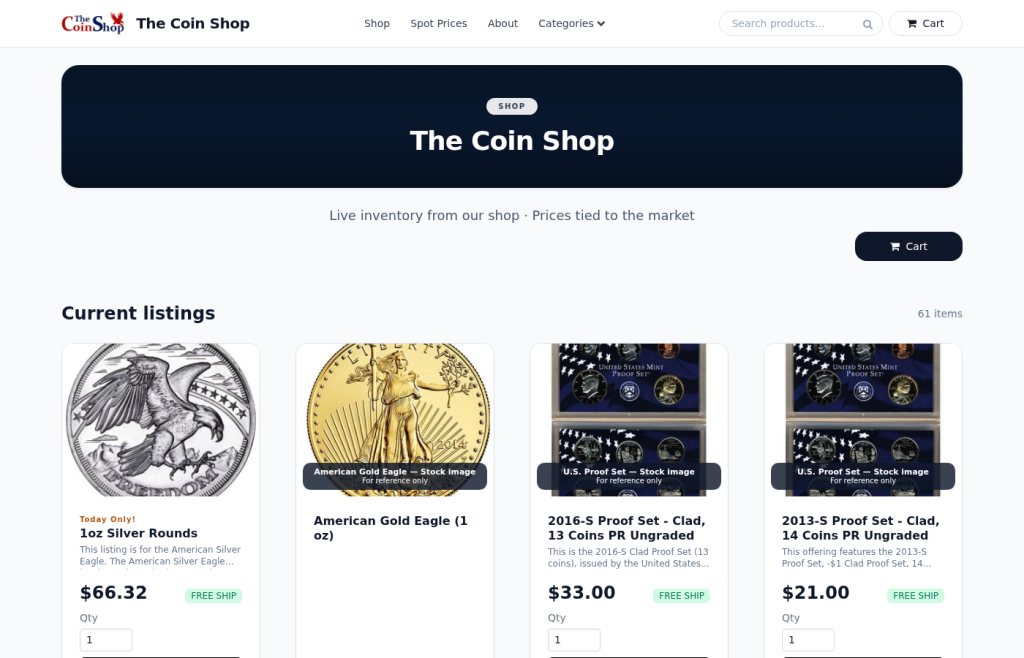
Updated August 2026. Organic search is slow when every other shop is bidding the same ASE keywords. SpotPro already builds a live Google Shopping XML feed from your ExtraCoins Online Listings — you paste one URL into Merchant Center and Google (and Microsoft/Bing product ads) can fetch it on a schedule. No weekly CSV exports.
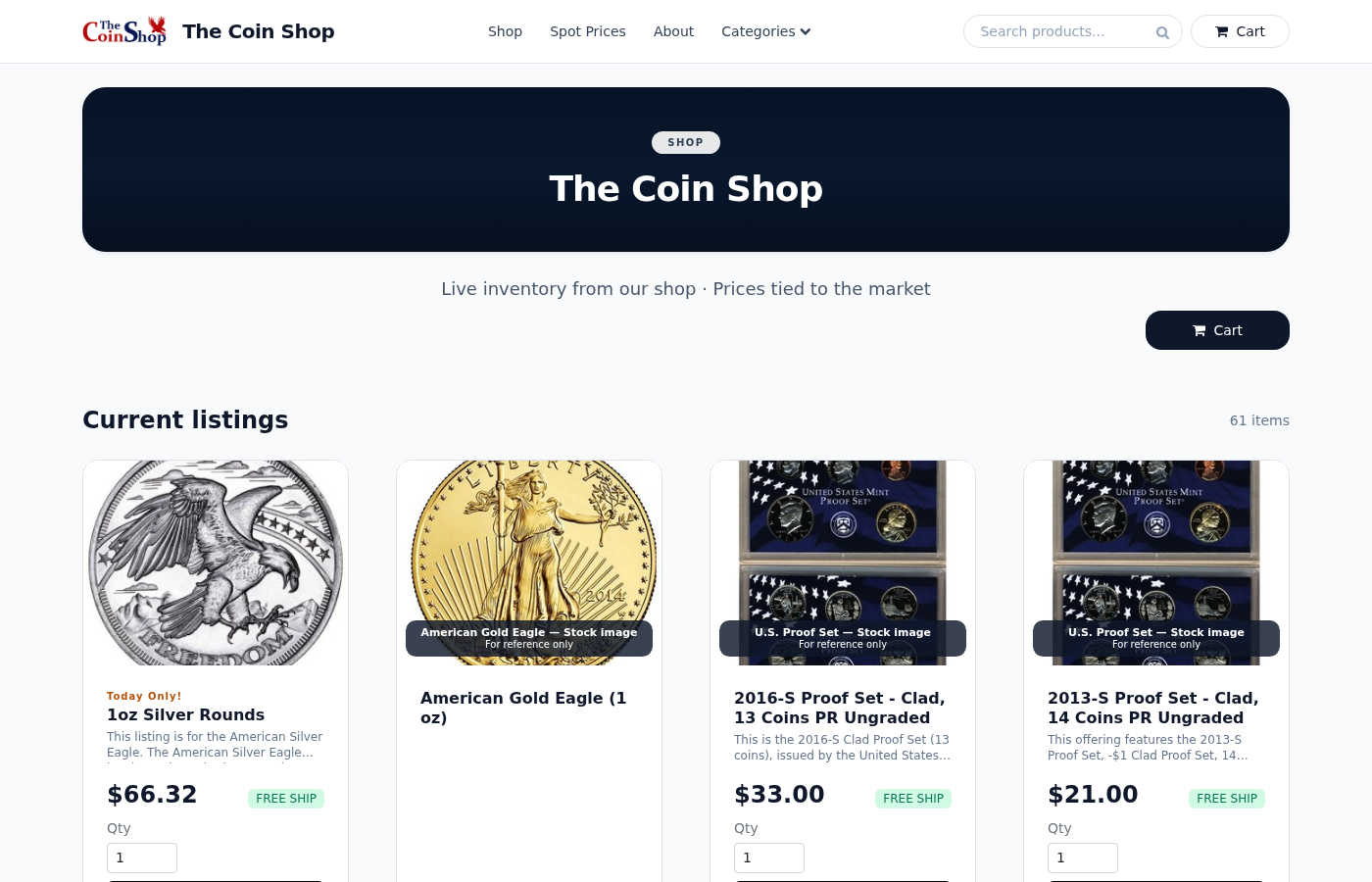
What SpotPro actually gives you
With an ExtraCoins storefront on SpotPro you get a product feed path on your shop domain:
- Primary feed:
/shopping-feed(current). Legacy/shopping-XML-feed.phpstill works. - Local inventory feed:
/shopping-local-inventory-feedfor floor / in-store-only pieces (pair with Google Business Profile). - Copy button under Company Profile → ExtraCoins store → Google Shopping feed (and under Online Listings → Get found online).
- Vacation mode: when you close the store, feed contents pause so you are not advertising stock you will not ship.
- Structured data on product detail pages (price, image, availability, shipping/returns labels) so the landing page matches what Merchant Center expects.
What goes into the feed (and what does not)
Only listings that are Visible, set to Buy online, in stock, and have a photo + title + description enter the online Shopping feed. Paused rows and pure showcase “in-store only” items stay out of online free product listings — those use the local inventory path instead.
Feed rows include category, shipping times, custom labels (metal, price band), and return-policy labels so Google can approve cleaner catalog data for bullion and collectibles.
Connect Google Merchant Center (once)
- 1. Merchant Center — create an account and verify ownership of your ExtraCoins store URL.
- 2. Add feed — Products → Feeds → Add feed → Scheduled fetch → paste your
/shopping-feedURL. Daily fetch is typical. - 3. Landing pages — each item must open a real product URL (for example
/item/123-product-name) with price and availability that match the feed. - 4. Search Console — submit your store sitemap (separate from Merchant Center) so category and item pages can be crawled.
- 5. Optional Google Ads — link Merchant Center to Google Ads for Shopping campaigns. Free listings can still show when Google approves the catalog without paid ads.
- 6. Local shoppers — claim Google Business Profile with the same name/address/phone as Company Profile; add the local inventory feed for floor stock.
Same feed works for Microsoft / Bing Shopping
Microsoft Merchant Center (Bing / Microsoft Advertising) accepts product catalogs in the same family of attributes as Google’s feed. Dealers usually:
- Create a Microsoft Merchant Center account and verify the store domain.
- Add a scheduled fetch using the same SpotPro
/shopping-feedURL (or export once to confirm columns if Microsoft asks for a one-time check). - Link Microsoft Advertising for Product ads / Shopping-style campaigns aimed at older demographics who still use Bing heavily.
You do not maintain two inventories. SpotPro / ExtraCoins is the source of truth; Google and Bing both read the live catalog.
Dealer tips that prevent disapprovals
- Titles that include year, metal, weight, and grade beat vague “Silver coin lot” names.
- Real photos beat stock art for collectibles; bullion still needs a clear product image.
- Keep Company Profile address/phone aligned with Business Profile and feed business identity.
- Do not run paid backlink schemes as a substitute for a clean catalog — durable discovery is Merchant Center + GBP + real stock.